By Fotify
How to Track Where Every RSVP Came From: Multi-Link Registration + Guest Tags
When you post your event link in five different places — an Instagram story, a family WhatsApp thread, the company intranet, a paper flyer at the venue, a newsletter — and 84 people register… where did they all actually come from?
Until now, the honest answer was "no idea." One public registration URL, one opaque pool of RSVPs. You'd guess, eyeball patterns in email addresses, or just accept the fog.
Today that's done. Fotify's digital invitations platform now ships with two features that, together, give you clean per-source attribution: multi-link registration and guest tags. This post is the practical guide to using them.

The Core Idea in One Sentence
Create one shareable registration URL per channel, tag each URL with a label, and every RSVP that comes through it is automatically labeled for you.
That's it. The rest of this post is examples and workflow.
What Changed
If you used Fotify's registration form before, you know it worked with a single public link. One URL, one code, one bucket. We've just shipped two upgrades that stack on top of that:
1. Multi-link registration
You can now create up to 25 shareable links per event. Each has:
- Its own URL (auto-generated or a custom slug like
fotify.app/r/family) - Its own per-link stats: views, unique visitors, registrations
- Its own pause/resume state
- Its own optional tag list applied automatically to registrations
The form itself — title, required fields, max plus-ones, accept/decline, success message — stays shared across every link. You configure the form once. Links are just shareable entry points.
2. Guest tags
Tags are free-form colored labels you attach to guests. Create as many as you need (up to 50 per event): "Family", "VIP", "Instagram", "Work", "Dietary-veg", "Flying in". Tags let you:
- Filter the guest list by one or more tags (with Any/All matching)
- Bulk-apply to dozens of guests at once
- Auto-apply to every guest who registers via a specific link
- Import/export via the CSV upload and download
They're organizer-only — guests never see them.
Together, the two features give you real attribution. Each link has a tag, every registration gets the tag, and your guest list becomes segmented by source the moment someone signs up.
The Simple Setup (5 Minutes)
Let's walk through it with a wedding example. You want to know how many RSVPs come from each of these channels:
- Close family (shared in a WhatsApp group)
- Work colleagues (emailed from your work account)
- Instagram (posted on your feed)
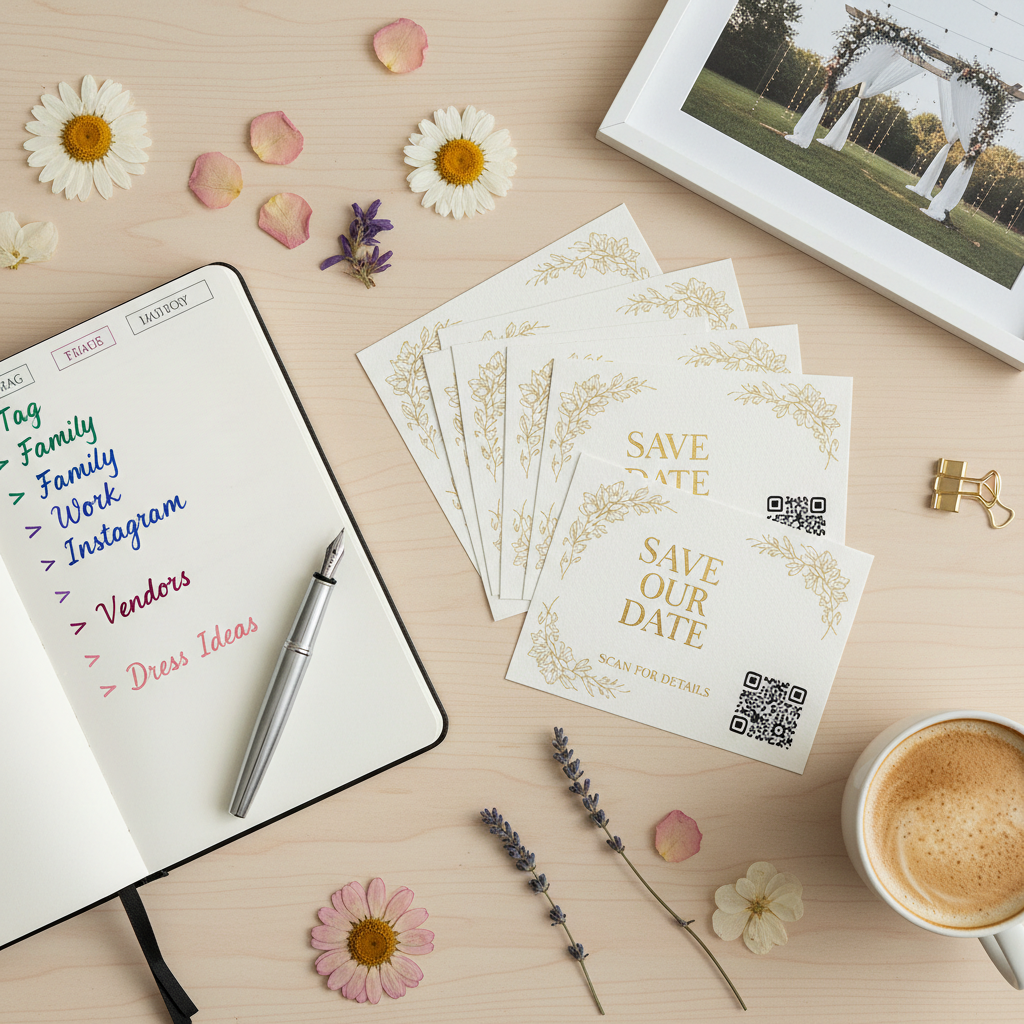
- Printed save-the-date cards with a QR code
Step 1: Create your tags first
In the dashboard, go to RSVP → Guests. Above the status filters, you'll see the tag filter row. Click "+ New tag" and create four tags — one per channel — with distinct colors:
- 🟡 Family
- 🟣 Work
Step 2: Enable the registration form
Go to the Event Details tab and toggle the Registration Form on. Fotify seeds a Default link automatically. Leave it alone for now — we'll add more links on top.
Step 3: Create one link per channel
In the "Shareable registration links" section, click "New link". In the modal:
- Internal name: "Family" (only you see this)
- Custom code: leave unchecked (or type
familyif you wantfotify.app/r/family) - Auto-apply tags: tick the Family tag
- Create link
Repeat for Work, Instagram, and Print. You'll end up with 5 links: the default + 4 channel-specific ones. Each card shows its URL, applied tags as chips, and three counters: Views, Unique, Registrations.
Step 4: Share the right link in the right place
- WhatsApp family chat → the Family link
- Work email → the Work link
- Instagram bio + story sticker → the Instagram link
- Save-the-date QR code → the Print link
From this moment on, every RSVP is auto-tagged as it arrives. No manual sorting, no guesswork.
Step 5: Watch the numbers land
In your links list, each card updates live as people visit and register. After a week you might see:
- Family — 28 views, 18 unique, 17 registrations (very high conversion — these folks know you)
- Work — 64 views, 52 unique, 12 registrations (weaker signal, but volume)
- Instagram — 320 views, 210 unique, 9 registrations (big reach, low commitment — expected)
- Print — 6 views, 6 unique, 4 registrations (QR code scans — high intent)
Now you know not just how many people registered, but from where — and you know exactly which channel to lean into next time.
Segmenting the Guest List After the Fact
Once guests are tagged, the real fun starts. In the Guests tab, click any tag chip in the filter row to filter the list. Click a second tag to stack. When two or more are active, an Any / All toggle appears:
- Any — guests with at least one of the selected tags
- All — only guests with every selected tag
Some queries this unlocks instantly:
- "Show me all work colleagues who haven't replied yet" → filter by Work tag + Not Answered status
- "Who are my family VIPs?" → filter by Family and VIP in All mode
- "Anyone coming from Instagram who declined?" → filter by Instagram + Declined
Then use the per-row Copy / WhatsApp / Email buttons to send tailored reminders to just that segment — no spam to people who already responded.
Tagging Guests You Added Manually
Not every guest self-registers. Your close family probably got a personalized invitation from the digital-invitations flow with their names pre-filled. Tag them too:
Per-guest (inline)
On any guest row, click + Add tag in the Tags column, tick what applies, hit Save. Done. Great for one-off edits.
Bulk-tag many at once
For dozens of guests, use the checkboxes:
- Tick the guests you want to tag
- In the red selection bar that appears at the top, click "Apply tags"
- Pick a mode — Add, Remove, or Replace
- Check the tags and hit Save
This is how you'd mass-tag your "Bridal Party" for coordinated reminders, or flag 20 dietary-restriction guests after the venue asks.
Via CSV import
If you're uploading a spreadsheet from a planner or another tool, add a Tags column with pipe-separated names:
Name,LastName,Email,Phone,Guests,Tags
Maria,Garcia,maria@example.com,+34612345678,3,Family|VIP
John,Doe,john@example.com,+14155551234,2,Work
Tags that don't exist yet on the event get auto-created with a default color. Rename or recolor them later in the tag manager.
Real-World Playbooks
Playbook 1: Wedding with RSVP deadline pressure
You're three weeks out from the wedding and the RSVP deadline is a week away. You look at your stats:
| Link | Registrations | Not-Answered ratio |
|---|---|---|
| Family | 42 / 48 invited | Low |
| Work | 18 / 30 invited | High |
| 12 | — (open) |
The work bucket is lagging. Filter the guest list by Work + Not Answered, and send a WhatsApp nudge from each guest's row — just to that segment. You're not pestering family; you're not DMing strangers on Instagram; you're only reaching the exact people you need to.
Playbook 2: Conference with tiered access
A two-day industry conference with three ticket tiers: General, Speaker, Sponsor. Create three tags and three registration links, each preloaded with the right tag. Share:
- The General link in the public signup page
- The Speaker link privately with confirmed speakers
- The Sponsor link only in sponsorship contracts
Day-of check-in, the volunteer at the door filters by tag to see which wristband to hand out. The venue caterer gets a filtered CSV of just Sponsors for the VIP dinner headcount.
Playbook 3: Community event with accessibility tracking
You're hosting a community gathering and you need to know who needs wheelchair access, ASL interpretation, or a gluten-free meal. Add a custom form field for each, then after registrations roll in, filter by status + custom-field response, and bulk-tag the matching guests as Access-wheelchair, Access-ASL, Diet-gluten-free. Now your venue and caterer can pull a filtered list in one click.
Paused Links, Deleted Links, and the Rules of the Default
A few things worth knowing:
The default link is special. Fotify creates it when you first enable the form; it's marked with a blue "Default" badge. You can rename it, change its tags, copy it, and even delete it — but you can't pause or regenerate its code. Why? Because its URL is the event's main registration URL, and if you have a custom domain, yourdomain.com/register rewrites to that default link's code. Rotating it would break every already-shared URL.
Every other link is fully editable. Pause it to temporarily take it offline (visitors see a friendly "registration paused" page instead of a 404). Regenerate its code if it leaked. Delete it when the campaign is over.
Paused or deleted links show a friendly page. No bare 404s. Visitors get a clean "This registration link is paused" or "We couldn't find this link" message with a link back to the homepage. Closed URLs are also marked noindex, nofollow so they don't pollute Google.
Tags survive link deletion. Delete a link and the tag isn't deleted — guests who already registered through it keep the tag they got. Their attribution is permanent.
Where to Go Next
- Full feature deep-dive: How to use the Registration Form (help article)
- Guest tags reference: How to Use Guest Tags
- Build the full guest list workflow: How to Manage Your Guest List
- See all invitation features: Digital Invitations — our full RSVP + invitation pillar page
And if you're still deciding whether Fotify is the right RSVP platform for your event, we've done the research for you: The Best RSVP Apps for Events in 2026 walks through the top options side by side.
Wrapping Up
Before this update, you could send a registration link and wait. Now you can run five campaigns on the same event, attribute every single RSVP to its source in real time, and filter your guest list by any dimension you care about — channel, relationship, dietary need, plus-one status — without a spreadsheet in sight.
Every feature on Fotify comes down to the same idea: event organizers deserve tools that don't make them the glue between other tools. Multi-link registration and guest tags aren't flashy. They're the quiet kind of upgrade that saves you a phone call, a panic, a late-night Excel session.
Try it on your next event. Create the links before you share, tag as you go, and when someone asks "which post worked?" — you'll know.
Need help getting started? Our full registration form guide walks through every setting in the dashboard, and the guest tags article covers every tag workflow end to end.
Related Pages
Discover how Fotify can transform your events