By Fotify
QR Code Photo Sharing for Events and Parties: Free Setup Guide (2026)
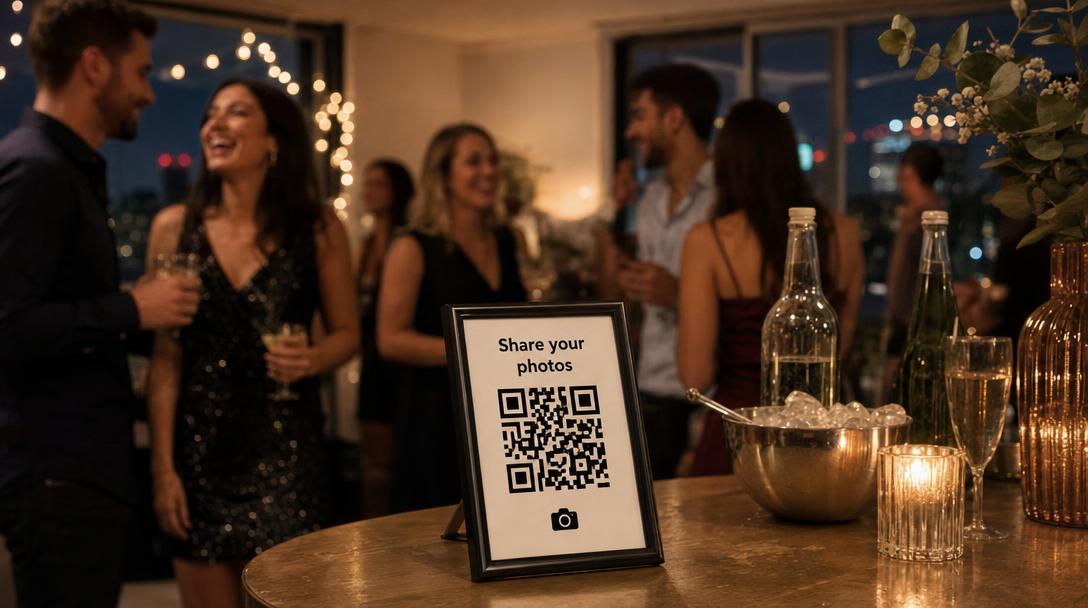
Every guest at your event has a camera in their pocket, and by the end of the night there are hundreds of photos spread across dozens of phones. Asking people to "send them later" almost never works. QR code photo sharing fixes the collection problem at the source: you put one QR code on a sign, guests scan it with their phone camera, pick their photos, and everything lands in a single gallery that you own.
This guide covers events of every kind except weddings (we have a separate step-by-step wedding QR guide for those): birthdays, house parties, company events, conferences, reunions, school events and memorials. You will see how it works, how to set it up in about ten minutes, which free options exist, and where to put the code so people actually use it.
How QR Code Photo Sharing Works
A QR code is just a link that a phone camera can read. For photo sharing, that link opens an upload page for your event. The whole guest experience looks like this:
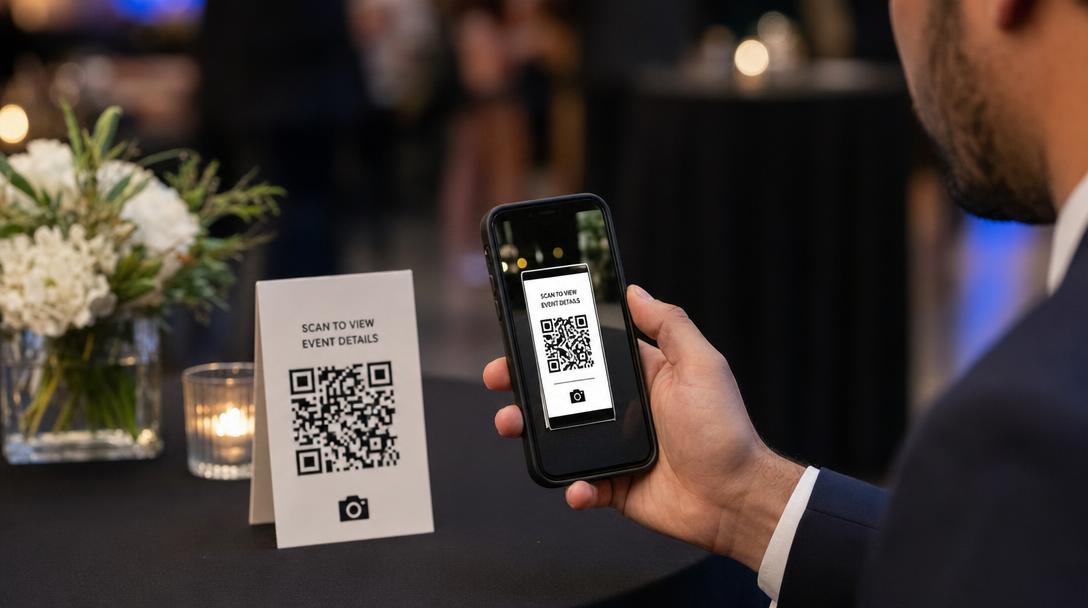
- Scan. The guest points their phone camera at the code. No QR app is needed on any recent iPhone or Android phone.
- Pick photos. The upload page opens in the browser and lets them choose photos and videos from their camera roll, or take a new one.
- Upload. One tap sends them to your event. With Fotify, guests do not create an account or download an app, and adding a name or a short message is optional.
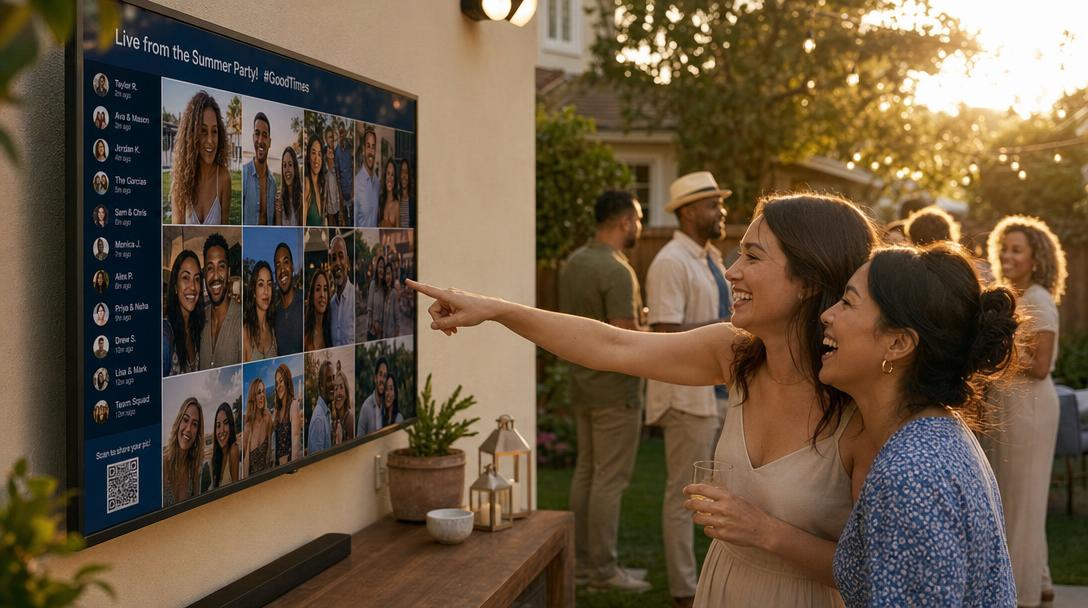
- See them live. If you put the live photo wall on a TV or projector, new uploads appear on screen within seconds, which is the single best way to get more people uploading.
After the event you download everything in one go, instead of chasing photos through group chats where they arrive compressed and out of order.
Set Up QR Code Photo Sharing in 5 Steps
Step 1: Create your event (2 minutes)
Create an event on a photo sharing platform and give it a name and date. On Fotify the QR code exists the moment the event is created, so you can get the QR code weeks before the event and print signs or add it to your invitation early.
Step 2: Decide what guests can see
Choose whether the gallery is private (only you see the uploads) or shared (guests can browse everyone's photos). Two settings matter here:
- Moderation. Turn on manual approval if you want to review every photo before it appears, or AI moderation on paid plans to filter inappropriate content automatically. For a work event, one of the two is a good idea.
- One link for upload and viewing. You can show recent photos on the upload page itself, so the same QR code lets guests both share and browse. See how to use one link for uploading and viewing.
Step 3: Design the QR sign (3 minutes)
Download the QR code from your event, or paste your upload link into our free QR code generator to make a designed version: your colors, your logo in the center, a theme and a frame, then export as PNG, SVG or a print-ready A4 PDF flyer. The generator raises error correction automatically when you add a logo, so the code still scans.
Keep the sign simple. A short headline ("Share your photos!"), the code, and one line of instruction ("Scan with your camera, no app needed") beats a busy design every time.
Step 4: Test it from real distance
Scan the printed sign with two or three different phones, from the distance a guest would actually stand. A code that scans from 15 cm can fail from a meter away if it is printed too small. As a rule of thumb, print the code at least 5 cm wide on table cards and 15 cm or more on wall signs.
Step 5: Put the live wall on a screen and announce it
Open the live photo wall in a browser on any smart TV, laptop with a projector, Chromecast or Apple TV. Then say it out loud once: a host, DJ or MC announcing "scan the code and your photo goes on the big screen" usually produces the biggest upload spike of the night.
Where to Put the QR Code at Different Events
The best spot is always where people already stand still with their phone out. Some specifics by event type:
| Event | Best QR placements | Tip |
|---|---|---|
| Birthday party | Cake table, bar, entrance, bathroom mirror | Show the wall on the TV during the cake moment, when every phone is already up |
| House party | Fridge door, drinks area, next to the TV | Send the link in the party group chat too, for the people who leave early |
| Corporate event or offsite | Registration desk, coffee station, stage screen, table cards | Use your company logo on the code and turn on moderation before the event |
| Conference | Badge or lanyard, session room doors, slides between talks | Ask speakers to show the code on their last slide |
| Reunion or family gathering | Name tag table, buffet, photo display wall | Invite people to upload old photos as well as new ones |
| School event or graduation | Program booklet, entrance banner, bleachers | Turn on manual approval so a teacher or parent reviews uploads first |
| Memorial or celebration of life | Guest book table, memory board, printed program | Keep the album private and invite family to add photos from home for a few weeks |
For more party-specific ideas, the party photo app page shows how a live wall works at a birthday or house party, and our corporate events page covers branded walls for company events.
Free Ways to Share Photos with a QR Code
You can do QR photo sharing for free. The real differences are whether guests need an account, whether there is a live display, and how many photos you can collect.
| Option | Guest needs an account? | Live screen | Guests see each other's photos | Limits |
|---|---|---|---|---|
| Fotify Free Event | No | Yes, live photo carousel | Optional | 50 photos, 7-day upload window |
| Google Photos shared album + QR | Yes, a Google account to add photos | No | Yes | Storage counts against the owner's Google quota |
| Dropbox file request + QR | No | No | No, uploads go to your folder only | Storage counts against your Dropbox plan |
| Group chat (WhatsApp, iMessage) | Needs the guest's number in the group | No | Yes | Photos are compressed and mixed with messages |
The free Fotify plan is meant for small gatherings and for trying the setup before a bigger event: 50 photos, unlimited guests, the live photo carousel and basic moderation. If you expect more than 50 photos, which happens fast at any party over 20 people, the Photo Gallery plan ($29.99 per event) removes the photo limit, keeps uploads open for 30 days and the gallery for 90, adds AI moderation and full-resolution files, and lets you download every photo as one ZIP. If guests will film toasts or speeches, the Premium plan ($49.99) adds video clips, long videos of up to 5 minutes and custom branding. All current plans are on the pricing page.
If you want to compare dedicated platforms in depth, our best event photo sharing apps for 2026 ranks ten of them.
How to Get More Guests to Upload
Most events get a fraction of the photos they could. These are the things that move the number the most:
- Put the live wall on a big screen. Seeing their own photo appear on the TV is what makes guests scan a second and third time. The QR code photo booth guide has more on turning the wall into the entertainment.
- Announce it once, at a high point. Right after the toast, the cake or the keynote, when phones are already out.
- Put the code in more than one place. One sign at the entrance is not enough. Table cards and a sign by the bar or buffet do most of the work.
- Send the link before and after. Add it to the invitation or the event group chat, and send a reminder the next morning: "Upload your photos from last night here." Many of the best photos arrive the day after.
- Keep the upload window open. Guests take days to sort through their camera rolls. A free event stays open for 7 days and paid plans for 30 days or more, and you can extend the upload window if people are still sending.
- Never ask for an account. Every extra field costs uploads. Fotify asks for nothing; a name is optional.
Running Several Events? Print One Code Forever
A standard event QR code points to that one event. That is fine for a birthday, but if you are a venue, planner or company that runs events every month, reprinting signs gets old. Fotify's dynamic links give you a permanent link (and QR code) that you redirect to whichever event is current, so the sign on the wall never changes. If you are unsure which type you need, our explainer on static vs dynamic QR codes walks through the difference.
QR Code Photo Sharing FAQ
Is QR code photo sharing free?
Yes, for small events. Fotify's Free Event plan includes the QR code, browser uploads from unlimited guests, the live photo carousel and up to 50 photos with no credit card. Larger events need a paid plan for unlimited photos. Generating the QR code itself is always free with our QR code generator.
Do guests need to download an app to upload photos?
Not with Fotify. The QR code opens a web page in the phone's browser, so guests on iPhone or Android can upload without installing anything or creating an account.
Can guests upload videos too?
Yes. Photos are supported on every plan; video clips and long videos of up to 5 minutes (speeches, toasts, performances) are part of the Premium Event plan and above.
Can I stop inappropriate photos from showing on the screen?
Yes. Turn on manual approval to review every upload before it appears, or use AI moderation on the Photo Gallery plan and above to filter content automatically.
How do I get all the photos after the event?
Download the full album as one ZIP file from your dashboard (Photo Gallery plan and above), or share a public album link with your guests so everyone can see and save the photos.
Can I make the QR code before the event?
Yes. The code is ready as soon as you create the event, so you can print signs, add it to invitations or send it to your venue weeks ahead.
What is the difference between this and a wedding QR code?
The mechanics are the same. Weddings tend to have extra needs (a guest book, a ceremony and reception album, an unplugged ceremony), which is why we have a dedicated wedding QR code guide and wedding photo sharing app.
Start with One Code
QR code photo sharing turns everyone at your event into a photographer and puts their photos in one place you control. Create the event, print one clear sign, put the live wall on a screen and announce it once. That is most of the work.
Create your event free and test the whole flow on your own phone before the party. If you need a different approach for a group trip or a family album, see our guide to the best way to collect photos from a group.
Related Pages
Discover how Fotify can transform your events