By Fotify
Your AI Event Planner Is Here: Connect Claude, ChatGPT or Gemini to Fotify
Planning an event is really two jobs. There's the fun one — the vision, the people, the moments you want to create. And there's the other one: typing sixty guests into a list, setting up RSVP questions, seating cousins away from exes, rewriting the invitation email for the fourth time.
Starting today, you can hand the second job to an AI assistant you already use. Fotify now works as a connector for Claude, ChatGPT and Google Gemini, which means your assistant can plan your event with you, inside your Fotify account — creating the event, managing guests, building the seating chart, designing the invitation and preparing the emails, all from a normal chat conversation.
What "Connected" Actually Means
Most AI chatbots can only give you advice: "here's a checklist for your wedding." A connected assistant can do the work. Once you link your account, Claude, ChatGPT or Gemini gets a set of safe, permission-scoped abilities inside Fotify:
- "Set up my wedding for September 12th at Finca La Marina, RSVP deadline August 20." Done — event created, RSVP on, deadline set.
- "Here's my guest list." Paste a spreadsheet straight into the chat; the assistant imports up to 100 guests at a time, flags the rows that failed, and can export everything back as a CSV whenever you want.
- "Add a dietary restrictions question and a song request field to the RSVP form."
- "Create 8 round tables of 10 and seat everyone who confirmed, families together." The assistant works with the same visual venue map and seating chart you use in the dashboard.
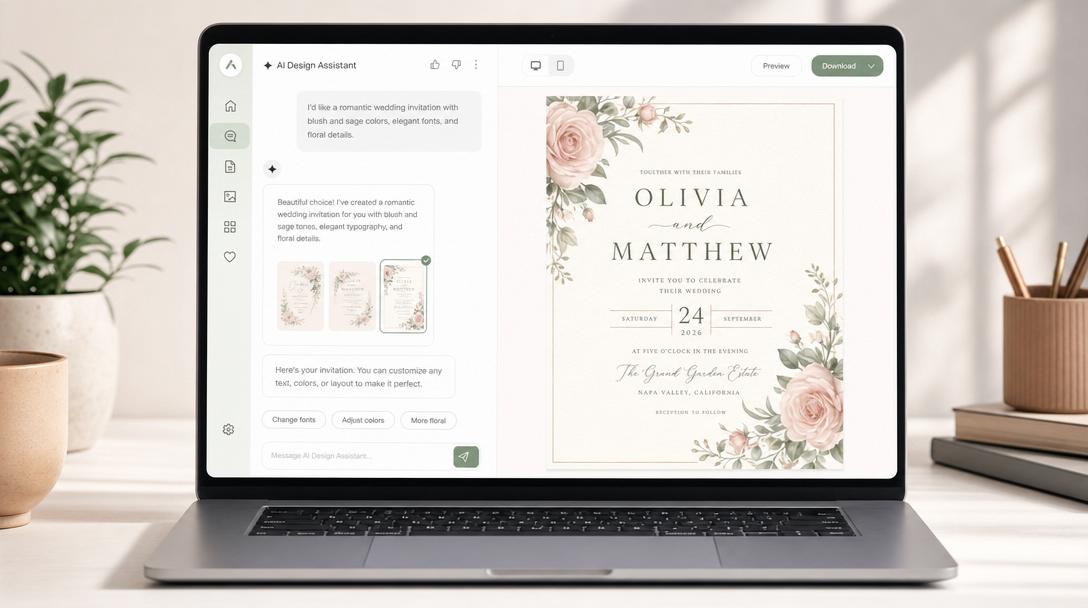
- "Design the invitation: editorial, ivory and sage, generate a cover of an olive grove at dusk." Design changes are powered by the same engine as the AI Design Studio — drafts first, never live until you apply them.
- "How's the event going?" Photo upload counts, RSVP breakdowns, email delivery stats — one question away.
The Party Trick: Rebuild Your Venue Map From a Photo
This one feels like magic. If your venue sent you a floor plan — a PDF screenshot, a photo of a printed map, even a napkin sketch — paste it into the chat and ask your assistant to rebuild it.
Because Claude, ChatGPT and Gemini can see images, the assistant reads the layout and recreates it in your Fotify seating chart: the stage, the dance floor, the bar, and every table positioned where the photo shows them, numbered and sized to match. The image never leaves your conversation — the assistant simply places the pieces using the same venue map you'd edit by hand. You fine-tune by dragging, then start seating guests.

Guardrails You Can Rely On
Handing an AI the keys to your event only works if it can't surprise you. We built the connector so the important lines can't be crossed — enforced by our servers, not by the assistant's good manners:
- Emails always require your confirmation. Before anything is sent (now or scheduled), the assistant must show you exactly who will receive it and get your explicit go-ahead. Test emails only ever go to your own inbox.
- Designs are drafts. Your guests never see a design experiment; you review and apply in the dashboard.
- Deletions are double-checked. Removing a guest photo, a sub-event or a registration link requires your explicit confirmation.
- Your login is never shared. The connection uses the same authorization standard (OAuth) as major platforms — the assistant gets a revocable token limited to the permissions you approved, and you can disconnect it any time from your account menu.
- Your plan's limits still apply. Email credits, AI image quotas and premium features work exactly like they do in the dashboard.
How to Connect (Two Minutes)
- In Claude: Settings → Connectors → Add custom connector. In Gemini: Settings & help → Connected Apps → Add a custom app (personal Google accounts). In ChatGPT, open its connector settings. Enter the connector URL:
https://server.fotify.app/mcp - Your browser opens Fotify, where a consent screen shows exactly what the assistant is asking to do. Click Allow access.
- Start chatting: "What events do I have coming up?"
The connection is free — you only use your normal Fotify plan. The full walkthrough, including permissions and disconnecting, is in our help guide for connecting AI assistants.
Why This Beats a Standalone "AI Planner"
A wave of AI event-planning tools can draft checklists and mood boards. The difference here is that your assistant is operating a real event platform: the digital invitation with RSVP tracking your guests actually receive, the live photo sharing your QR code points to on the night, the seating chart the venue gets, the emails with real delivery stats. Nothing to copy across, no "now go set this up somewhere" step — the conversation is the setup.
And because it's a two-way connection, the assistant is just as useful after the invitations go out: chasing pending RSVPs, moving guests between tables as answers arrive, approving uploaded photos, or summarizing how the gallery is filling up during the party itself.
If you're comparing platforms first, our guide to the best digital invitation apps shows how Fotify stacks up — and every plan works with the connector from day one.
Try It on Your Next Event
Connect your assistant, then say the thing you've been putting off: "Import my guest list." "Seat everyone." "Make the reminder email friendlier and send it Monday morning."
The fun job stays yours. The other one finally has help.
Related Pages
Discover how Fotify can transform your events